The thing that stops most founders from getting value out of Claude Cowork is the setup. The product is genuinely powerful but the first hour can feel like an over-eager onboarding wizard. You click through five permissions, connect ten apps, install three plugins, and end up staring at an empty chat window wondering what to do next.
The fix is order. Do less, in the right sequence, and Cowork is useful before lunch. Here is the checklist we run with every new founder.
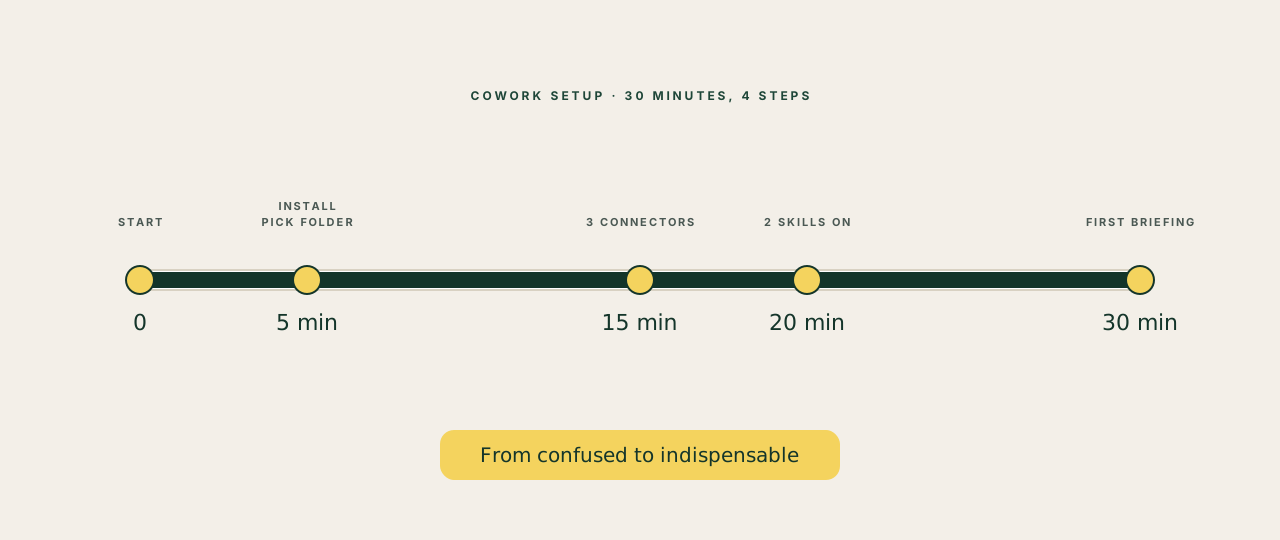
What you'll have at the end of 30 minutes
- Cowork installed and signed in
- One folder where Cowork can read and write
- Three connectors live: Gmail, Calendar, and one knowledge base (Drive or Notion)
- Two Skills enabled (the Office Suite and call-prep)
- One real workflow run end-to-end: a Monday morning briefing
That's enough to feel the difference. Adding more on day one slows you down.
Step 1: install and pick your folder (5 minutes)
Download Claude from claude.com, open it, sign in. So far, normal app onboarding.
The decision that matters: which folder. Cowork operates inside a folder you choose. It can read, write and edit anything in that folder. Outside, it cannot.
Don't pick your whole Documents directory. Don't pick your whole iCloud Drive. Pick a single folder you'd be comfortable letting a junior chief of staff loose in. Most founders create a fresh one called "Cowork" or "AI workspace" with a few subfolders inside (briefings, drafts, models, decks).
This is the sandbox. Everything Cowork does ends up here. You can move files out later. The boundary keeps you sane.
Step 2: connect three apps, not thirteen (10 minutes)
Open Settings → Connectors. You will see a long list. Resist.
The minimum viable connector stack is three:
- Gmail. Email is where most founder context lives. Without it, Cowork is reading half the story.
- Calendar. Pairs with Gmail for almost every prep, scheduling and follow-up workflow.
- One knowledge base. Pick Google Drive or Notion, whichever holds your real working docs. Just one.
That's it for day one. You can add Slack, Stripe, Asana, GitHub, Granola, Box and the others when you have a workflow asking for them. Adding them speculatively means you'll see noisy autocomplete suggestions and won't trust the assistant.
Each connector takes 1 to 3 minutes to authorise. Stay strict on the scope: read access where possible, write access only where the workflow needs it.
Step 3: enable two Skills (5 minutes)
Settings → Skills. Enable two:
- Office Suite (docx, xlsx, pptx, pdf). The unlock that makes Cowork produce real Word docs, real spreadsheets, real slides.
- call-prep. Hands Cowork the workflow for prepping any meeting from your calendar. Triggers on phrases like "prep my 3pm with Sarah."
Skip everything else for now. We have a separate note on Skills if you want to go deeper later.
Step 4: run the Monday briefing (10 minutes)
This is the workflow that flips the switch. Open Cowork and paste this:
Look at my Gmail from the last 7 days, my calendar for the week ahead, and any open threads waiting on me. Write me a Monday morning briefing with three sections: what I owe people, what I'm waiting on, and the three biggest things this week. Save it as a file in /briefings.
Let it run. It will pull, summarise, and save. The briefing won't be perfect on the first run. Tell Cowork what to keep and what to drop. Run it again. Within two iterations, it's yours.
Schedule it to run every Monday at 7am with the Schedule Skill if you want it on autopilot.
What not to do on day one
Two traps that waste the morning.
Don't build a custom Skill yet. The skill-creator is a real tool but creating Skills before you've felt the limit of the defaults is premature optimisation. Use Cowork as it ships for two weeks. The Skills you actually need will surface on their own.
Don't connect everything. Every connector you add expands the surface area Cowork has to think about. Three is enough for week one. Add the fourth when a workflow specifically asks for it.
The first sign it's working
You stop opening Cowork and asking "what should I do?" You start opening it and saying "do this." That's the line. Once you cross it, you'll never go back to chat-only AI.